
 H
 Q
 N

Meeting transcription
You talk. Haaloo keeps every word.
Nothing left to piece together from memory. When the meeting ends, the full text is there, with everyone’s name on it. Transcribed on your devices.
- Mac
- iPhone

Coming to the App Store. Free to download, 7-day trial, then a one-time purchase at €19.99 (€14.99 launch price).

The meeting ends, the text arrives. Your minutes start there.
Sound familiar?
After the meeting, the real work starts.
“I spend the evening writing up the minutes from memory.”
With Haaloo, you start from the full text, not your scribbled notes.
“So who promised what?”
Every sentence has its speaker’s name on it.
“If there’s a dispute, I need the exact words.”
One click on a sentence and you hear it as it was said.
“I don’t want to hand our conversations to an online service.”
Transcription happens on your devices. Meelkaa receives nothing.
The difference
After every meeting, it’s all ready.
The meeting’s over. The text is ready, with everyone’s name on it.
The text, as soon as the meeting ends
Haaloo transcribes on your device as soon as the call ends, then lets you know. You read it through while it’s all still fresh.
Everyone’s name
Haaloo tells voices apart. Name a voice once and it recognises that voice from then on, including in your older recordings. To help, it suggests the participants from your calendar invitation.
The exact words, in one click
Click the time next to a sentence and you hear it again. During the call, a keyboard shortcut marks an important moment so you can find it later.
Any meeting, found in a few keystrokes
Search for a word or a name: Haaloo finds the meeting and the passage.
Slides alongside the text
If you allow it, Haaloo keeps screenshots of the shared screen, next to the sentences spoken at that moment.
It starts on its own
Teams, Zoom, Webex, Slack, WhatsApp, or Meet in the browser: as soon as the calling app opens the microphone, Haaloo records. A notification lets you stop it or choose not to record.
The minutes
From meeting to minutes.
Haaloo doesn’t write the minutes for you. It gives you the exact material to write them from.
- The full text, sentence by sentence, with the time and everyone’s name.
- An ordinary text file you can open, copy and paste into your email or word processor.
- The original audio, to check a sentence before you write it down.
How it works
From call to text, in four steps.
Grant the permissions
The first time you open it, Haaloo asks for access to your microphone and calendars, then downloads its transcription models: a one-off download of several gigabytes.
Make your call
Haaloo records your microphone and, where possible, the audio from the calling app. For FaceTime and iPhone calls, only your microphone is recorded.
Haaloo transcribes
When the call ends, transcription happens on your device: the text, the separated voices, the link to the calendar event. You get a notification.
Name and review
Click “Interlocuteur 1” (Speaker 1) to give that person a name. Click the time next to a sentence to hear it again.
On iPhone
The iPhone transcribes. The Mac can go deeper.
An in-person meeting, a client visit: the iPhone records and transcribes on the spot. With a Mac, the transcription can then be taken further, as an option.
- One press. The Action button or Control Centre starts recording. The same press stops it.
- Your meetings, even away from your Mac. The list of meetings, with the time, length and status of each, and search by meeting.
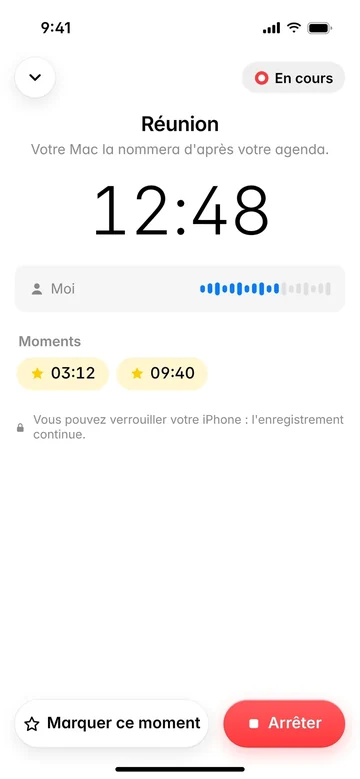
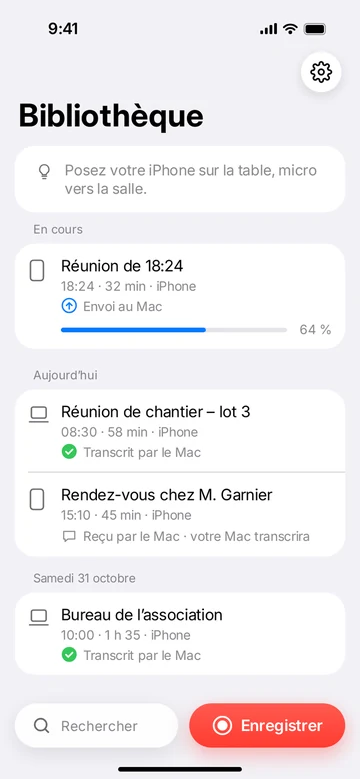
Recording in progress, then the list of meetings. Sample content, app shown in French.
Your data
Your meetings stay with you.
- No Meelkaa servers
Meelkaa has no server that receives your recordings, transcripts or voices.
- Transcribed on your devices
Once the models are downloaded, transcription and voice recognition run on your devices, with no internet connection.
- Your folders, your choice
Files go into the folders you choose. If you keep them in iCloud Drive or Google Drive, that service syncs them, like your other documents.
- Yours to erase
One setting erases Haaloo’s data, on the Mac and the iPhone, with or without your recordings.
In detail
What you need to know.
- Devices
- Apple silicon Mac with macOS 27 or later (Haaloo lives in the menu bar, at the top of the screen). iPhone with iOS 26 or later, which records and makes a first transcription on the device. If you have a Mac, a more thorough transcription is then made there; you can turn this option off.
- Transcription
- Speech recognition models that run on your devices, including Whisper and Parakeet on the Mac, plus a dedicated model for separating voices. The first launch downloads them: several gigabytes.
- Languages
- Transcribes French and English only, or detects which of the two automatically. App interface in French for now.
- Calls detected
- Teams, Zoom, Webex, Slack, WhatsApp, Discord, and calls made in a browser (Meet, Teams). FaceTime and iPhone calls relayed through the Mac: your microphone only; if recording doesn’t start on its own, start it yourself, as with any other app.
- Import a file
- Drop an audio file into the “À importer” (to import) folder, drag it into the window, or plug in your recorder like a USB stick.
- Output files
- For each meeting, a folder with the transcript in a text file any software can open (Markdown), the same again as data for other tools (JSON), an information sheet and the audio (m4a).
- Useful setting
- The “Son de l’app d’appel uniquement” option (calling app audio only), on by default, leaves out videos, music and notifications from your Mac.
Tell people, then record.
Tell participants before you record, and get their consent where the law requires it. Rules vary from country to country. In France, recording a person’s private or confidential words without their consent is a criminal offence (Article 226-1 of the French Criminal Code). One sentence at the start of the meeting will do: “I’m recording this meeting to keep a transcript. Does anyone object?”
At a glance
Haaloo in a few words.
Haaloo is a meeting transcription app for Mac and iPhone, published by Meelkaa. It records your calls and meetings, transcribes them on your devices and recognises each speaker by their voice.
- Who it’s for
- People who go from meeting to meeting, then spend hours on the minutes: committees, firms (surveyors, accountants, solicitors), teams, freelancers. And people who don’t want to hand their conversations to an online service.
- Devices
- An Apple silicon Mac with macOS 27 or later: Haaloo sits at the top of the screen, next to the clock. An iPhone with iOS 26 or later: it records and makes a first transcription; with a Mac, a more thorough transcription can follow (an option you can turn off).
- Languages
- French and English only, or automatic detection between the two. App interface in French for now.
- Your data
- Transcription and voice recognition run on your devices. Meelkaa has no server that receives your meetings.
- When
- Transcription starts when the meeting ends, never during it.
- Where to get it
- App Store only. The price is the one shown on its listing, and Apple handles the purchase.
- Publisher
- Meelkaa, Mickaël Poisson’s studio.
Page updated on .
Common questions
What people ask us most.
Where can I get Haaloo, and at what price?
Haaloo is distributed only through Apple’s App Store, for Mac and for iPhone. The price, and any in-app purchases, are the ones shown on its listing. Purchases, payment, invoicing and refunds are handled by Apple under its own terms: Meelkaa receives no payment data. A question about the app? Support will help.
Will it run on my Mac?
You need an Apple silicon Mac with macOS 27 or later. To check, click the Apple menu at the top left of the screen, then “About This Mac”: the “Chip” line should show Apple M1 or later, and the “macOS” line 27 or higher. On iPhone: Settings › General › About, “iOS Version” line, 26 or higher.
Does Haaloo write the minutes?
No. Haaloo gives you the full text of the meeting, with everyone’s name and the time of each sentence. You write the minutes from that, with nothing to recall from memory. If in doubt, click a sentence to hear it again.
Do I need to invite a bot to the Teams or Zoom meeting?
No. Haaloo records from your Mac, without adding anything to the meeting. It detects Teams, Zoom, Webex, Slack, WhatsApp, and Meet in the browser, as soon as the app opens the microphone. For FaceTime and iPhone calls, only your microphone is recorded.
Do my meetings go over the internet?
Transcription doesn’t: it happens on your own devices, the iPhone and then the Mac, and Meelkaa has no server that receives it. Your files go into the folders you choose; if they’re in iCloud Drive or Google Drive, that service syncs them. Between iPhone and Mac, the recording travels through your private iCloud account. The details are in the privacy policy.
Which languages does Haaloo transcribe?
French and English only. You can also let Haaloo detect which of the two is being spoken.
Do I have to tell the people I’m recording?
Yes. Tell participants before you record, and get their consent where the law requires it. Rules vary from country to country. In France, recording a person’s private or confidential words without their consent is a criminal offence (Article 226-1 of the French Criminal Code). One sentence will do: “I’m recording this meeting to keep a transcript. Does anyone object?”
What does Haaloo do on iPhone?
It records, with one press: the Action button or Control Centre. The iPhone makes a first transcription on the device. If you have a Mac, a more thorough transcription is then made there; this second pass on the Mac is an option, and you can turn it off. On iPhone, you can see your list of meetings, with their time, length and status.
Why does Haaloo ask for several permissions?
The microphone and the audio from other apps are used to record the call. Calendars are used to give the meeting a title and suggest participants’ names. The local network links the iPhone to the Mac. Screen recording is only used to keep the slides, if you turn that option on.
How do I delete all my Haaloo data?
Before deleting the app: on the Mac, Réglages › Général › Données › “Effacer…” (Settings › General › Data › Erase…); on the iPhone, Réglages › Données › “Effacer toutes les données Haaloo” (Settings › Data › Erase all Haaloo data). Deleting the app alone isn’t enough.
At your next meeting, listen instead of taking notes.
A question before you start? The support page covers the most common ones, and Mickaël answers the rest.